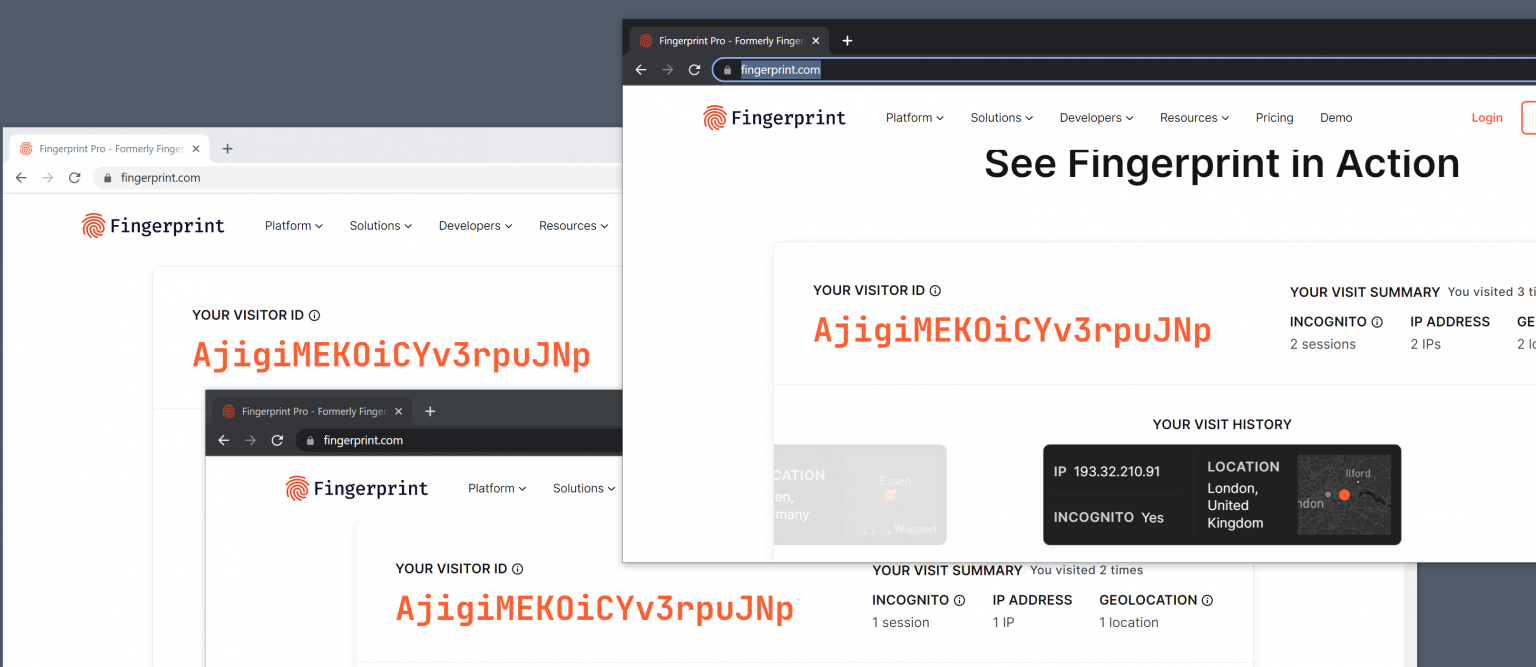
Web Fingerprinting gets frighteningly good: sees through VPNs and Incognito Mode
Local tests done in several web browsers confirmed the accuracy. The website identified three visits using Firefox, Firefox with private browsing mode and Firefox with private browsing mode and a VPN connection, as coming from the same user.
How to protect against fingerprinting
Internet users have two main options when it comes to protections against fingerprinting-based tracking. Either use a browser with proper protections against these types of tracking, Tor Browser or Firefox with privacy.resistFingerprinting set to TRUE are two valid options, or use different web browsers for different tasks.
Extensions that block the execution of scripts on websites may also protect against fingerprinting. Browser users may check out NoScript for that, which may be configured to block scripts by default. The popular uBlock Origin extension may also be configured to block all JavaScript by default.
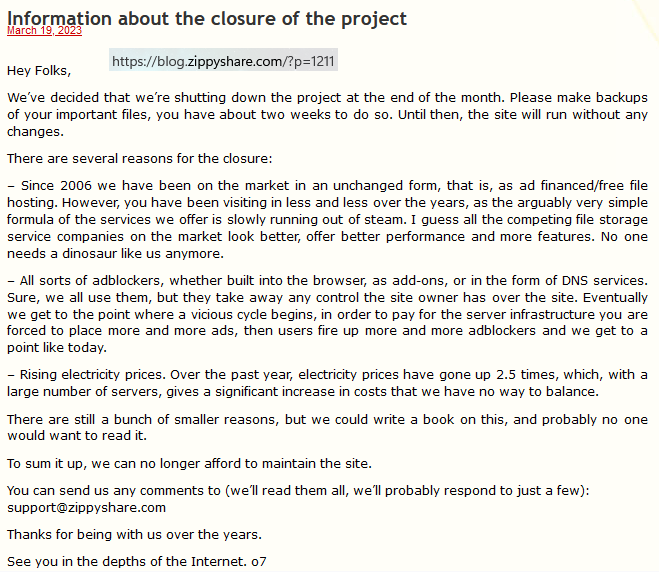
Just read through that ZippyShare is shutting down completely by the end of this month, and that they have asked users to backup the individual data. There is only a banner at the top of the site, but the following blog post makes it open as to why the reason to shut completely: https://blog.zippyshare.com/?p=1211
Information about the closure of the project
March 19, 2023
Hey Folks,
We’ve decided that we’re shutting down the project at the end of the month. Please make backups of your important files, you have about two weeks to do so. Until then, the site will run without any changes.
There are several reasons for the closure:
– Since 2006 we have been on the market in an unchanged form, that is, as ad financed/free file hosting. However, you have been visiting in less and less over the years, as the arguably very simple formula of the services we offer is slowly running out of steam. I guess all the competing file storage service companies on the market look better, offer better performance and more features. No one needs a dinosaur like us anymore.
– All sorts of adblockers, whether built into the browser, as add-ons, or in the form of DNS services. Sure, we all use them, but they take away any control the site owner has over the site. Eventually we get to the point where a vicious cycle begins, in order to pay for the server infrastructure you are forced to place more and more ads, then users fire up more and more adblockers and we get to a point like today.
– Rising electricity prices. Over the past year, electricity prices have gone up 2.5 times, which, with a large number of servers, gives a significant increase in costs that we have no way to balance.
There are still a bunch of smaller reasons, but we could write a book on this, and probably no one would want to read it.
To sum it up, we can no longer afford to maintain the site.
You can send us any comments to (we’ll read them all, we’ll probably respond to just a few):
support@zippyshare.com
Thanks for being with us over the years.
See you in the depths of the Internet. o7
I have raised a ticket with them to see if I can buy it out, of course if my budget allows. Let us hope it is within my budget, as I really hate to see something like this go down for such a small reason.
Robocopy - Copying files the right way in Windows -- Chris Titus -- https://christitus.com/robocopy/
I am sure most windows users will not be knowing about ROBOCOPY, the windows command-line robust copy/replace command. Teracopy has been said to be using this functionality for ages, and windows has included it since before Windows NT 4.0, in different ways, and as a stable one since 4.0, in its resource pack.
Created by Kevin Allen and first released as part of the Windows NT 4.0 Resource Kit, it has been a standard feature of Windows since Windows Vista and Windows Server 2008. The command is robocopy.
The secret dirt is that Robocopy was first written by MS colleague Kevin Allen, and he started sharing copies around in 1994ish. From there, and after many iterations and heavy-duty real-world feedback, robocopy ended up in the Windows Resource Kit, and then later merged into the core Windows package. In the beginning, Kevin was a very experienced programmer, but new to the Win32 API; so robocopy was one of his projects to educate himself about Windows programming. Later on, ITG used robocopy to routinely transfer many gigabytes of data around MS global offices, every night; it became very robust and battle-hardened. It is a long time now since Kevin was involved in the robocopy source code at all; it is maintained by the Windows team.
Syntax
By default Robocopy will only copy a file if the source and destination have different time stamps or different file sizes.
For example, to copy a file named yearly-report.mov from c:reports to a file share marketingvideos while enabling multi-threading for higher performance (with the /mt parameter) and the ability to restart the transfer in case it's interrupted (with the /z parameter), type:
Robocopy is noted for capabilities above and beyond the built-in Windows copy and xcopy commands, including the following, some requiring appropriate command-line options:
Ability to tolerate network interruptions and resume copy (incomplete
files are marked with a date stamp of 1970-01-01 and contain a recovery record so Robocopy knows where to continue from).
Ability to skip NTFS junction points which can cause copying failures because of infinite loops (/XJ)
Ability to copy file data and attributes correctly, and to preserve original timestamps, as well as NTFS ACLs, owner information, and audit information using the /COPYALL or /COPY: command line switches.
Beginning with the XP026 version, the ability to copy folder (or directory) date and timestamps (/DCOPY:T), even with the ability to update folder timestamps (copied from existing folders) on folders already created from previous versions (that did not copy the folder date and timestamps).
Ability to assert the Windows NT "backup right" (/B) so an administrator may copy an entire directory, including files denied readability to the administrator.
Persistence by default, with a programmable number of automatic retries if a file cannot be copied.
A "mirror" mode, which keeps trees synchronised by also deleting files in the destination that are not present in the source.
Ability to skip files already in the destination folder with identical size and timestamp.
A continuously updated command-line progress indicator.
Ability to copy paths exceeding 259 characters — up to a theoretical limit of about 32,000 characters — without errors.
Multithreaded copying introduced with Windows 7 and Windows Server 2008 R2.
Return code on program termination for batch file usage.
Compression
Since Windows Server 2019 and Windows 10, a compression option is available in robocopy when copying across a network. With this switch, if the destination computer supports SMB compression and the files being copied are very compressible, there may be significant improvements to performance. The SMB compression adds inline whitespace compression to file transfers. Compression is also available with the xcopy command and Hyper-V Live Migration with SMB.
Examples of use
Here are some examples of usage, which is not case-sensitive. If more than one option is specified, they must be separated by spaces.
Copy directory contents of the source Directory A to the destination Directory B (including file data, attributes and timestamps), recursively with empty directories (/E):
Robocopy "C:Directory A" "C:Directory B" /E
If directory names have non-standard characters, such as spaces, they must be enclosed in double quotes, as is usual in the command line.
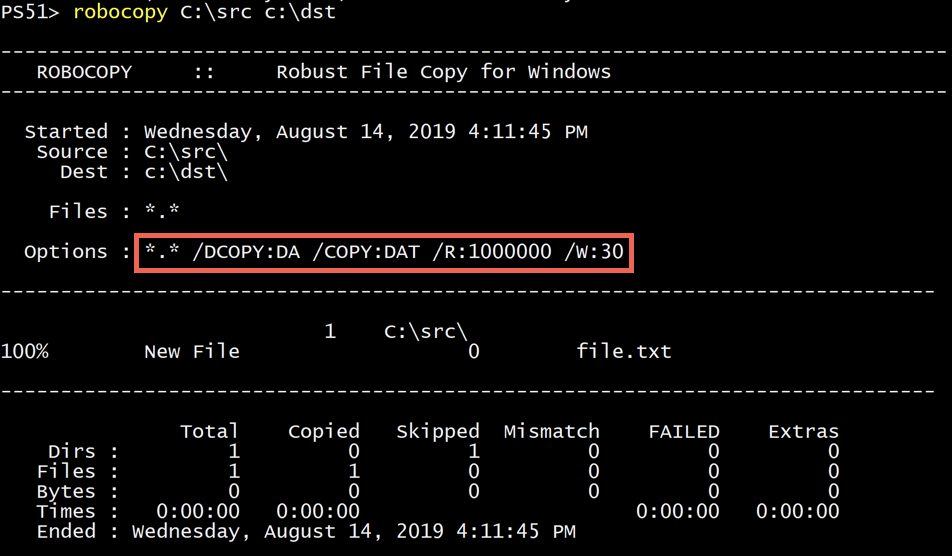
Copy directory recursively (/E), copy all file information (/COPYALL, equivalent to /COPY:DATSOU, D=Data, A=Attributes, T=Timestamps, S=Security=NTFS ACLs, O=Owner info, U=Auditing info), do not retry locked files (/R:0) (the number of retries on failed copies default value is 1 million), preserve original directories' Timestamps (/DCOPY:T - requires version XP026 or later):
Robocopy C:A C:B /COPYALL /E /R:0 /DCOPY:T
Mirror A to B, destroying any files in B that are not present in A (/MIR), copy files in resume mode (/Z) in case network connection is lost:
Robocopy C:A backupserverB /MIR /Z
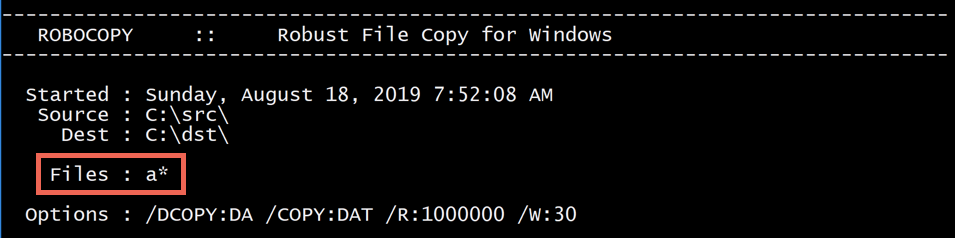
I was able to gather a video guide courtesy of Adam Bertram from his thread.
Few example images as well from his thread:
For the full reference, see the Microsoft TechNet Robocopypage.
How to activate all of Windows 11's secret God Modes
Windows 7 introduced a useful hidden God Mode that displays all of the admin tools and control options on a single screen. Because Microsoft has yet to phase out Control Panel entirely, this feature works just fine in Windows 11.
It’s very easy to action God Mode -- you just need to create a folder and give it a special name -- and there are actually quite a few alternative God Modes available. Here’s what you need to do.
To activate God Mode, right-click the desktop and select New > Folder. Highlight this folder, press F2 and name it:
GodMode.{ED7BA470-8E54-465E-825C-99712043E01C}
Hit enter. Open that folder and you’ll have instant access to a wide range of system settings.
If one God Mode isn’t enough for you, there are multiple other options available. Follow the same process as above, but use one of the following alternative strings:
Self Hosting is a form of running your own website or application by setting up a server and network yourself. Self-hosting is also the activity of having and administrating your own server, typically at home, to host your personal data and services yourself instead of relying exclusively on third-parties. For instance, you can self-host your blog, such that it 'lives' on a machine that you have control of, instead of having it on somebody else's computer (a.k.a. The Cloud) in exchange for money, seo-advertisement or selling of your private data.
Self-hosting ideally implies owning a server. A server is a computer which is typically accessible on the network 24/7, and usually does not have any screen or keyboard (it is instead controlled remotely). Contrarily to a popular belief, a server is not necessarily a huge and extra-powerful machine: nowadays, a small, ~$30 ARM board is adequate for self-hosting. However, this does not mean you cannot host anything on your own laptop/desktop.. Of course you can anytime.
Self-hosting is not about making "your Internet" more secure and does not provide anonymity by itself. Instead, it is about being autonomous, and in control of your services and data - which also means being responsible for them.
Why should you host yourself ?
You believe in a free, open and decentralized internet. In a centralized internet, private companies and government can spy, analyze and influence people by dictating how they connect with each other, and by filtering content. There are many hosting applications/servers developed by a community who believe in an open and decentralized internet, and we hope that you do, too! So, find them in the world of computers...
You want to have control of your data and services. Your pictures, chat messages, browsing history, and that text you are writing for school, have nothing to do on somebody else's server (a.k.a. The Cloud). They are part of your private life, but also part of your family's life, your friend's life, and so on. These data should be managed by you, not a random company in the US who wants your data to analyze them and sell the results.
You want to learn about how computers and the Internet work. Operating your own server is a pretty good context to understand the basic mechanisms at the heart of operating systems and the Internet. You might have to deal with command line interface, network architecture, DNS configuration, SSH, and so on.
You want to explore new possibilities and customize things. Ever dreamed of running a Game server for your friends, or a persistent IRC or XMPP client? With your very own server, you can manually install and run virtually any program you want, and customize every bit.
Why should you not host yourself ?
Self-hosting requires some work and patience. Hosting yourself is a bit like growing your own garden or vegetables: it requires work and patience. While those few open source images for home servers aim to do all the hard work for you, self-hosting still requires that you take time to learn and configure a few things to setup your server properly. You will also need to perform maintenance tasks (such as upgrades) from time to time, or to ask for support if some things break.
With great servers comes great responsibilities. Operating a server means that you are responsible for the data you are hosting. Nobody will be able to recover them for you if they get lost. Very few servers (images and open source images) provide backup features, and if they do, you should use the feature regularly to backup the configurations and data you care about. You should also keep an eye on security news and recommendations so that your server or critical data don't get compromised.
Quality and performance probably won't be as good as premium services. You should try and use those open source host images (and most of the applications packaged for it) which are free and have imbibed open-source software, developed by communities of people in their free time and on the basis of best effort. There of course is no absolute guarantee that those softwares will work in every possible circumstance. The performance of your self-hosted server is also related to its CPU and RAM, and to the available internet connectivity.
Edit/Update: 25.04.2023 - Read about my experience of self-hosting setup at home in the thread here.