Guides

Tutorials and guides on various topics, random as well.

[Guide] Increase max characters posting count limit for self-hosted Mastodon server

- Posted in Guides by

If you search for the max_characters keyword in the Mastodon Github repository, you will see that it all points to the value within the StatusLengthValidator and a variable called MAX_CHARS.

MAX_CHARACTERS_LOCAL  = 255

To modify it, first, ssh into your Mastodon server, and switch to the root shell:

sudo -s

Then, switch to the Mastodon user

su - mastodon

Now, modify the validator file:

nano -w live/app/validators/status_length_validator.rb

At the very top of the file, you will see the MAX_CHARS variable, which was by default 500, you can modify it to another integer, for example 3000 to allow a maximum of 3000 characters within each post.

class StatusLengthValidator < ActiveModel::Validator
  MAX_CHARS = 3000
  URL_PLACEHOLDER_CHARS = 23
  URL_PLACEHOLDER = 'x' * 23

Exit to root shell and restart the Mastodon processes, or simply reboot.

exit
systemctl restart mastodon*

[Guide] PuTTY Backup & Restore [Windows]

- Posted in Guides by

Export

cmd.exe, requires elevated prompt due to reg-edit:

Only sessions (produces file putty-sessions.reg on the Desktop):

regedit /e "%USERPROFILE%\Desktop\putty-sessions.reg" HKEY_CURRENT_USER\Software\SimonTatham\PuTTY\Sessions

All settings except ssh keys (produces file putty.reg on the Desktop):

regedit /e "%USERPROFILE%\Desktop\putty.reg" HKEY_CURRENT_USER\Software\SimonTatham

Powershell

Only sessions (produces file putty-sessions.reg on the Desktop):

reg export HKCU\Software\SimonTatham\PuTTY\Sessions ([Environment]::GetFolderPath("Desktop") + "\putty-sessions.reg")

All settings except ssh keys (produces file putty.reg on the Desktop):

reg export HKCU\Software\SimonTatham ([Environment]::GetFolderPath("Desktop") + "\putty.reg")


Import

Double-click on the *.reg file and accept the import.

Alternative ways:

cmd.exe, requires elevated command prompt:

regedit /i putty-sessions.reg
regedit /i putty.reg

PowerShell

reg import putty-sessions.reg
reg import putty.reg

Note: do not replace SimonTatham with your username.

Note: These commands will not export the related SSH keys.


Via Registry Editor

Export

  • Launch Run, then type regedit in the open drop down window
  • Navigate to HKEY_CURRENT_USER\Software\SimonTatham
  • Right click on SimonTatham key (directory icon), select Export. Give the file a name (say) putty.reg and save it to your location for later use.
  • Close Registry Editor.

Note: The export (full) will also export the related SSH Host Keys.

Import

  • Check previous method(s)

PuTTY Portable Restore

[path_to_Your_portable_apps]PuTTYPortable\Data\settings\putty.reg

[Guide]Let's Encrypt SSL/HTTPS Certificate for a unique port with HestiaCP

- Posted in Guides by

Introduction

In this tutorial, I will guide you through the process of setting up a let's encrypt ssl/https certificate (reverse proxy) on a unique port other than 80/443, example port:4545 on the root server for hosting using Hestia Control Panel (See installation URL given under prerequisites below). Hestia Control Panel is a popular open source web server control panel that simplifies the management of your website, email accounts, databases, and other hosting-related tasks. This tutorial is compatible with both VPS and Root Server offerings by netcup.

Assumptions:

  • You already have a sub-domain setup and the requisite service installed at the specified http port (example - http://sd1.domain.tld:4545).
  • You have the sub-domain setup with SSL/HTTPS (443) setup (example - https://sd1.domain.tld)
  • You have bare minimum knowledge of terminal, web servers, vhosts, reverse proxy.

The reading time of this tutorial is about 35 minutes; implementation will take approximately 60-70 minutes.

Background

The objective of Let’s Encrypt and the ACME protocol is to make it possible to set up an HTTPS server and have it automatically obtain browser-trusted certificates without any human intervention. This is accomplished by running an ACME client on a web server. To know more, visit Let's Encrypt. This also forms a part for use in Nginx reverse proxy configuration.

Forgejo is a self-hosted lightweight software forge (simple software project management). Easy to install and low maintenance, it just does the job.

In the world of open-source software, the story of how a project is governed is often as important as the code itself. Forgejo is a powerful testament to this fact. It is a “soft fork” of Gitea, created by a community of users and contributors to ensure that the project’s future remains in the hands of a non-profit, community-driven organization.

Born out of concerns following the creation of a for-profit company to manage Gitea, Forgejo’s mission is to be a truly free and open-source software (FOSS) forge, managed under the stewardship of the Codeberg e.V. non-profit. It is technically very similar to Gitea, but philosophically, it represents a commitment to community ownership and non-commercial governance.

Since Forgejo by default/design runs on port 4545 and many other projects also default to port 4545, I chose a different port (example 4545 here). This helps me keep it running in the background without conflicting with other applications. This was necessary for 2 more reasons:

  • Clean url everytime Example instead having to type or visit https://git.example.com:4545 every time, I will have a cleaner url as https://git.example.com.
  • Issue an HTTPS/SSL/TLS enabled URL and enjoy the higher level of security. Visitors & users of my site would also know they are safe.

Prerequisites

  • A server from netcup with latest Ubuntu 20.04/22.04/LTS; Debian 10/11/12/LTS or later installed (see the below URL) - use minimal mode of installation, also called clean installation. Installation Tutorial or the blog guide here.
  • A registered domain name
  • Access to your server

Step 1: Update your system

Before we begin, it's essential to ensure that your system is up-to-date. Log in to your server via SSH as the root user and run the following command:

For Ubuntu/Debian:

apt update && apt upgrade -y

Step 2: Add the necessary changes to the service (example git)

username@serverip:port

I created a normal subdomain at normal 80/443 ports with LE SSL generated. Then in the git app.ini (/etc/git/app.in) file, added this under [server]

nano /etc/git/app.ini
--------------
[server]
ENABLE_ACME = enable
HTTPS_PORT = 4545 ssl
ROOT_URL = https://git.domain.tld
-------------- **(save changes to the file by typing CTRL+X simultaneously)**
CTRL+X
Y
Enter

Then under nginx.conf ($HESTIADATA\conf\web\git.domain.tld\nginx.conf) I added

nano /$HESTIADATA\conf\web\git.domain.tld\nginx.conf
--------------
 location / {
     client_max_body_size 4096M;
     proxy_pass http://localhost:4545;
     proxy_set_header Connection $http_connection;
     proxy_set_header Upgrade $http_upgrade;
     proxy_set_header Host $host;
     proxy_set_header X-Real-IP $remote_addr;
     proxy_set_header X-Forwarded-For $proxy_add_x_forwarded_for;
     proxy_set_header X-Forwarded-Proto $scheme;
-------------- **(save via)**
CTRL+X
Y
Enter

Then under apache2.conf ($HESTIADATA\conf\web\git.domain.tld\apach2.conf) I added

nano /$HESTIADATA\conf\web\git.domain.tld\apache2.conf
--------------
     ProxyPreserveHost On
     ProxyRequests off
     AllowEncodedSlashes NoDecode
     ProxyPass / http://localhost:4545/ nocanon
-------------- **(save via)**
CTRL+X
Y
Enter

Then under apache2.ssl.conf ($HESTIADATA\conf\web\git.domain.tld\apache2.ssl.conf) I added

nano /$HESTIADATA\conf\web\git.domain.tld\apach2.ssl.conf
--------------
 < VirtualHost git.domain.tld:8443 https >
*****************************
*****************************
    ProxyPreserveHost On
     ProxyRequests off
     AllowEncodedSlashes NoDecode
     ProxyPass / http://localhost:4545/ nocanon
-------------- **(save via)**
CTRL+X
Y
Enter

I also enabled the following to ensure the proxy works:

 a2enmod proxy
 a2enmod proxy_http
 a2enmod proxy_balancer
 a2enmod proxy_wstunnel
 systemctl restart apache2

Then I restarted all services

 systemctl restart apache2
 systemctl restart nginx
 systemctl start git.service

I got the help from these:

APache SSL long record rrror

Let's Encrypt SSL certificate

Gitea reverse proxy - Apache HTTPD

Gitea reverse proxy - general conf

Gitea reverse proxy - NGINX

Someone's personal Forgejo guide

Conclusion

Awesome! You've successfully set up a let's encrypt certificate on a unique port other than the usual 443/8443.
Rewrite Engine (Messy)

- Posted in Guides by

Anyways.. To redirect a website, say example.co.uk to say example.co.uk/file.php

RewriteEngine on RewriteCond %{HTTP_HOST} ^example\.co\.uk$
[OR] RewriteCond %{HTTP_HOST} ^www\.example\.co\.uk$
RewriteRule ^/?$ "https\:\/\/example\.co\.uk\/file.php"
[R=301,L]

To rewrite PHP files

RewriteEngine On
RewriteCond %{REQUEST_FILENAME} !-d
RewriteCond %{REQUEST_FILENAME} !-f
RewriteRule ^([^.]+)/?$ $1.php [NC,L]
RewriteCond %{THE_REQUEST} /([^.]+)\.php [NC]
RewriteRule ^ /%1 [NC,L,R]
RewriteCond %{REQUEST_FILENAME}.php -f
RewriteRule ^ %{REQUEST_URI}.php [NC,L]

To rewrite HTML files

RewriteEngine On
RewriteCond %{REQUEST_FILENAME} !-f
RewriteRule ^([^.]+)$ $1.html [NC,L]
RewriteEngine on
RewriteCond %{THE_REQUEST} /([^.]+)\.html [NC]
RewriteRule ^ /%1 [NC,L,R]
RewriteCond %{REQUEST_FILENAME}.html -f
RewriteRule ^ %{REQUEST_URI}.html [NC,L]

To ensure access is limited and not exposed

<Files 403.shtml>
order allow,deny
allow from all
</Files>

RSS-Bridge - Installation

- Posted in Guides by

Even though they have their guides, it somehow never works for me (possible as I am using a master user)

I will just describe the steps here for traditional installation on either a shared hosting or on a control panel based hosting.

CD to the folder under html of the virtual host.

  • wget https://github.com/RSS-Bridge/rss-bridge/archive/refs/heads/master.zip
  • unzip master.zip
  • mv rss-bridge-master/.* .
  • rm rss-bridge-master && rm master.zip && cp config.default.ini.php config.ini.php
  • optionally you can delete the "docker" files/folders
  • make necessary changes where you wish. If on a shared server, do not enable all bridges
  • chown -R user:user ./* ./.* && chown -R user:www-data ./cache && cd

Let's Encrypt SSL on specific port(s)

- Posted in Guides by

I was finally able to get forgejo (port 3000) (specific port) redirect to https with let's encrypt ssl.

I created a normal subdomain at normal 80/443 ports with LE SSL generated. Then in the forgejo app.ini (/etc/forgejo/app.in) file, added this under [server]

[server] ENABLE_ACME = enable HTTPS_PORT = 3000 ssl ROOT_URL = https://git.domain.tld

Then under nginx.conf ($HESTIADATA\conf\web\git.domain.tld\nginx.conf) I added

location / {
  client_max_body_size 4096M;
  proxy_pass http://localhost:3000;
  proxy_set_header Connection $http_connection;
  proxy_set_header Upgrade $http_upgrade;
  proxy_set_header Host $host;
  proxy_set_header X-Real-IP $remote_addr;
  proxy_set_header X-Forwarded-For $proxy_add_x_forwarded_for;
  proxy_set_header X-Forwarded-Proto $scheme;

Then under apache2.conf ($HESTIADATA\conf\web\git.domain.tld\apache2.conf) I added

    ProxyPreserveHost On
    ProxyRequests off
    AllowEncodedSlashes NoDecode
    ProxyPass / http://localhost:3000/ nocanon

Then under apache2.ssl.conf ($HESTIADATA\conf\web\git.domain.tld\apache2.ssl.conf) I added

    < VirtualHost git.domain.tld:8443 https >

    ProxyPreserveHost On
    ProxyRequests off
    AllowEncodedSlashes NoDecode
    ProxyPass / http://localhost:3000/ nocanon

I also enabled the following to ensure the proxy works:

    a2enmod proxy
    a2enmod proxy_http
    a2enmod proxy_balancer
    a2enmod proxy_wstunnel
    systemctl restart apache2
    systemctl restart nginx
    systemctl start forgejo.service

I got the help from these: APache SSL Long Record Error || Let's Encrypt SSL Certificate || Gitea Reverse Proxy - Apache HTTPD || Gitea Reverse Proxy - General Conf || Gitea Reverse Proxy - NGINX || HestiaCP Post || Reddit Post

Install Hestia Control Panel (Debian 12 Root Server)

- Posted in Guides by

I recently purchased a KVM root server from Netcup to finally move my FbIN domain and the related services there. Those being very resource hungry items, my current shared hosting setup was making my life a pain. It has been a place where I was restricted a lot, being shared resources, shared space, and everything. I even tried at home networking, but being CG-NAT, nothing worked, not even DDNS.

So, let us start with it.

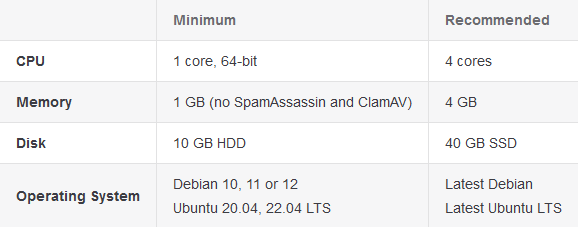
Requirements: Writing for example KVM - RS 2000 G12 1M Rabatt (netcup) Operating System: Debian 12 Bookworm - Minimal Install Processor: AMD EPYC™ 9645 Processor cores: 8 dedicated RAM DDR 5 ECC: 16 GB Hard drive: 512 GB NVMe SSD Location: Europe Hestia URL: Getting Started Documentation | Generate Installation Script | WGET URL | List Of Installation Options

enter image description here


Note: Installer needs to be run as root. Also, Hestia must be installed on top of a fresh operating system installation to ensure proper functionality. If on a VPS/KVM, and there is already an admin account, either delete that default admin ID, or use --force to continue with the installation. See my custom installation script below for further details. Hestia only runs on AMD64 / x86_64 and ARM64 / aarch64 processors. It also requires a 64bit operating system! Hestia currently does not support i386 or ARM7-based processors.

Note: Never run a web or mail domain with the admin user.


Login

  • Login to your server via SSH/Terminal
  • Update your system apt update && apt upgrade -y

Download

  • cd /home
  • wget https://raw.githubusercontent.com/hestiacp/hestiacp/release/install/hst-install.sh

If the download fails due to an SSL validation error, please be sure you've installed the ca-certificate package on your system - you can do this with the following command:

  • apt-get update && apt-get install ca-certificates

Run this Installation Script

bash hst-install.sh --hostname 'examplepanel.domain.tld' --username 'admin' --email 'workingmail@domain.tld' --password 'strong&complexpasswordhere' --multiphp '8.2,8.3,8.4' --postgresql yes --sieve yes --webterminal yes --force

This command will force install Hestia in English with the following software:

  • Nginx Web Server
  • PHP-FPM Application Server
  • PostgreSQL & MariaDB
  • Database Server
  • IPtables Firewall + Fail2Ban Intrusion prevention software
  • VSFTPD FTP Server
  • Exim Mail Server
  • Dovecot POP3/IMAP Server
  • Sieve
  • ClamAV
  • API
  • Web Terminal
  • Port 8083

Once installed, you can start accessing your installation at: https://panelexample.domain.tld:8083 or http://your.public.ip.address:8083

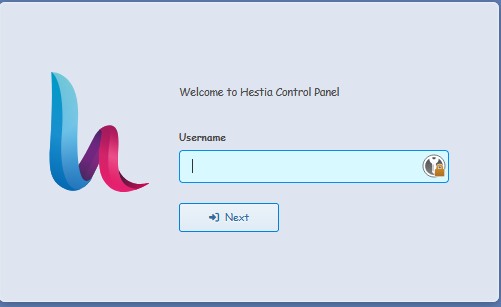
Login Page

enter image description here

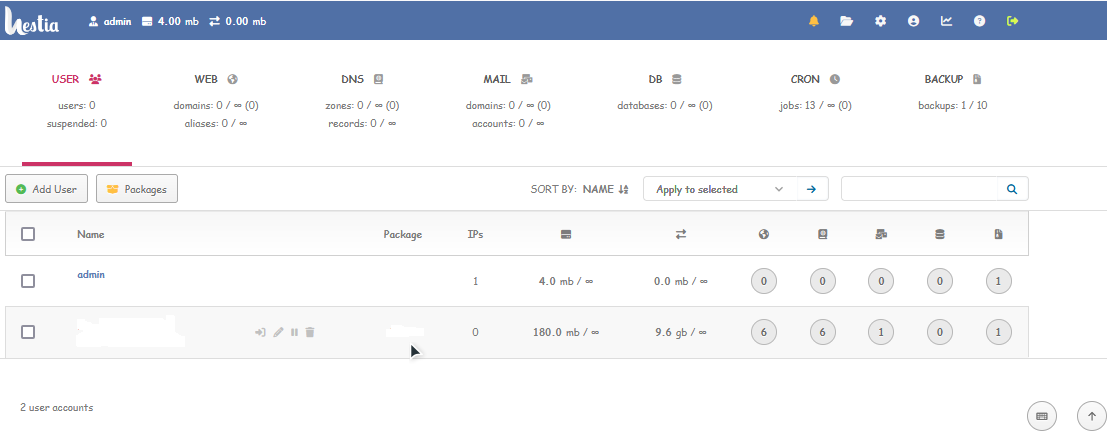
Control Panel Homepage

enter image description here

Enable two-factor authentication (2FA) for the admin user -- Documentation

Since the admin user has full control on the server, as well as elevated privileges, it is greatly recommended that you enable 2FA on this account. To access your account settings, click the user button in the top right.

  • In your account settings, check the box labeled Enable two-factor authentication.
  • Click the Save button in the top right.
  • Scan the QR code using an authentication app.
  • Save your Account Recovery Code somewhere safe, in case you lose access to your authenticator.

To secure your account further check out the following tutorial (applies to everyone using linux): Secure Linux Server

ClamScan Guide

- Posted in Guides by

A step by step guide on how to use CLAMSCAN for scanning any file/folder/drive letter.

  1. Open Clamscan application (I use it as a portable app, which makes it much more easier for me). A GUI opens (similar to this one, unless there is any other GUI available in the market, lols)

Main GUI

  1. You will notice the drive letters being shown. Example, A, B, C, D. Let us image you are using C:UsersPCUSERNAMEHEREDownloads, the downloads folder for saving your file. It maybe any file. ISO, ZIP, RAR, Executable, or anything at all. Please note any ISO/Mountable file being shared needs to be mounted (be it Windows or Linux OS you use, mount it), and then the path where the file gets mounted to needs to be scanned. Example let us say I mount 123.ISO and it gets mounted to G drive. In that case, after mounting, when I open clamscan, the GUI will show G drive letter as well. See example in the image below, where the G drive is the DVD Drive (icon also shows DVD). Even better if you can share the snap of the actual explorer drive like image one below, where it shows actually what ISO file I have mounted (of course not everything can be used or shown, and there is a certain level of trust imbibed by default):

Main Drive File Explorer Image Drive letter highlighted

  1. Now in order to show the actual file/folder being scanned, double click the drive letter where it is kept / mounted. In the 2 examples images, the first one shows the file/folder path as: C:Users/PCUSERNAMEHERE/Downloads (select and highlight the file/folder you want to scan) The second image shows an ISO file I mounted for this tutorial purposes on Drive G. Select the Drive Letter (you can expand all folders within the drive in clamscan app)

Tip: Select SHIFT Key to select multiple files/folders/drive letters.

example folder selected example drive letter selected

The above images are for your understanding purposes and not exactly how you need to share the final snapshot. See point 4 for the next step.

  1. After selecting the file/folder/drive letter, ensure you place the main clamscan app screen at the very top of your PC screen. Then click scan for the scanning to start. Example snap has me just scanning the 7z file here, and hence I have placed the scanning progress screen in alignment with just the file name highlighted here (you can see the highlight via the greying of the selected file name). BTW, be sure your virus signature database is updated from Tools > Download Virus Database Update After the virus database loads (time to load depends on the number of signature bases against the file hash and the size that the clamscan reads against the file/folder items and also the CPU running load. At one point, the progress status shows the name of the file/folder being scanned as well. You maybe able to take the snap of it, or may not (smaller items, the progress status runs away in a click). My second snap shows the same. Finally the scan results will pull up in the status with the scan details including the file size and the time taken etc details. See the 3rd snsapshot for the details. The third image is the final image usually to share as your virus scan result in the example of 7Z scanning.

Loading virus signature database File/folder name being scanned scan result

The first image below shows the G Drive (where my ISO is mounted) details which have started to scan. The second image shows the drive fully scanned and the scan results with the specifics and details of the scan. The second image is the final image usually to share as your virus scan result in the example for ISO mount scanning.

status with ISO name scan result (iso)

The final image is what you must usually share here, which not just shows the scan results, but also the file/folder being scanned by you.

Any & all suggestions as well as comments are welcome. :)