Introduction
In this tutorial, I will guide you through the process of setting up a let's encrypt ssl/https certificate (reverse proxy) on a unique port other than 80/443, example port:4545 on the root server for hosting using Hestia Control Panel (See installation URL given under prerequisites below). Hestia Control Panel is a popular open source web server control panel that simplifies the management of your website, email accounts, databases, and other hosting-related tasks. This tutorial is compatible with both VPS and Root Server offerings by netcup.
Assumptions:
- You already have a sub-domain setup and the requisite service installed at the specified http port (example -
http://sd1.domain.tld:4545).
- You have the sub-domain setup with SSL/HTTPS (443) setup (example -
https://sd1.domain.tld)
- You have bare minimum knowledge of terminal, web servers, vhosts, reverse proxy.
The reading time of this tutorial is about 35 minutes; implementation will take approximately 60-70 minutes.
Background
The objective of Let’s Encrypt and the ACME protocol is to make it possible to set up an HTTPS server and have it automatically obtain browser-trusted certificates without any human intervention. This is accomplished by running an ACME client on a web server. To know more, visit Let's Encrypt. This also forms a part for use in Nginx reverse proxy configuration.
Forgejo is a self-hosted lightweight software forge (simple software project management). Easy to install and low maintenance, it just does the job.
In the world of open-source software, the story of how a project is governed is often as important as the code itself. Forgejo is a powerful testament to this fact. It is a “soft fork” of Gitea, created by a community of users and contributors to ensure that the project’s future remains in the hands of a non-profit, community-driven organization.
Born out of concerns following the creation of a for-profit company to manage Gitea, Forgejo’s mission is to be a truly free and open-source software (FOSS) forge, managed under the stewardship of the Codeberg e.V. non-profit. It is technically very similar to Gitea, but philosophically, it represents a commitment to community ownership and non-commercial governance.
Since Forgejo by default/design runs on port 4545 and many other projects also default to port 4545, I chose a different port (example 4545 here). This helps me keep it running in the background without conflicting with other applications. This was necessary for 2 more reasons:
- Clean url everytime
Example instead having to type or visit
https://git.example.com:4545 every time, I will have a cleaner url as https://git.example.com.
- Issue an HTTPS/SSL/TLS enabled URL and enjoy the higher level of security.
Visitors & users of my site would also know they are safe.
Prerequisites
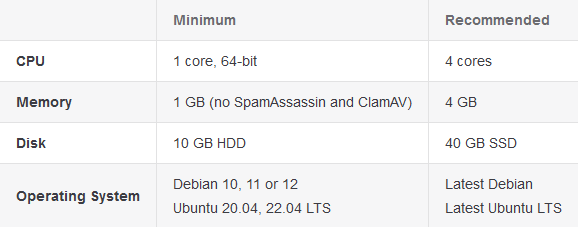
- A server from netcup with latest Ubuntu 20.04/22.04/LTS; Debian 10/11/12/LTS or later installed (see the below URL) - use minimal mode of installation, also called clean installation. Installation Tutorial or the blog guide here.
- A registered domain name
- Access to your server
Step 1: Update your system
Before we begin, it's essential to ensure that your system is up-to-date. Log in to your server via SSH as the root user and run the following command:
For Ubuntu/Debian:
apt update && apt upgrade -y
Step 2: Add the necessary changes to the service (example git)
username@serverip:port
I created a normal subdomain at normal 80/443 ports with LE SSL generated.
Then in the git app.ini (/etc/git/app.in) file, added this under [server]
nano /etc/git/app.ini
--------------
[server]
ENABLE_ACME = enable
HTTPS_PORT = 4545 ssl
ROOT_URL = https://git.domain.tld
-------------- **(save changes to the file by typing CTRL+X simultaneously)**
CTRL+X
Y
Enter
Then under nginx.conf ($HESTIADATA\conf\web\git.domain.tld\nginx.conf) I added
nano /$HESTIADATA\conf\web\git.domain.tld\nginx.conf
--------------
 location / {
     client_max_body_size 4096M;
     proxy_pass http://localhost:4545;
     proxy_set_header Connection $http_connection;
     proxy_set_header Upgrade $http_upgrade;
     proxy_set_header Host $host;
     proxy_set_header X-Real-IP $remote_addr;
     proxy_set_header X-Forwarded-For $proxy_add_x_forwarded_for;
     proxy_set_header X-Forwarded-Proto $scheme;
-------------- **(save via)**
CTRL+X
Y
Enter
Then under apache2.conf ($HESTIADATA\conf\web\git.domain.tld\apach2.conf) I added
nano /$HESTIADATA\conf\web\git.domain.tld\apache2.conf
--------------
     ProxyPreserveHost On
     ProxyRequests off
     AllowEncodedSlashes NoDecode
     ProxyPass / http://localhost:4545/ nocanon
-------------- **(save via)**
CTRL+X
Y
Enter
Then under apache2.ssl.conf ($HESTIADATA\conf\web\git.domain.tld\apache2.ssl.conf) I added
nano /$HESTIADATA\conf\web\git.domain.tld\apach2.ssl.conf
--------------
 < VirtualHost git.domain.tld:8443 https >
*****************************
*****************************
    ProxyPreserveHost On
     ProxyRequests off
     AllowEncodedSlashes NoDecode
     ProxyPass / http://localhost:4545/ nocanon
-------------- **(save via)**
CTRL+X
Y
Enter
I also enabled the following to ensure the proxy works:
 a2enmod proxy
 a2enmod proxy_http
 a2enmod proxy_balancer
 a2enmod proxy_wstunnel
 systemctl restart apache2
Then I restarted all services
 systemctl restart apache2
 systemctl restart nginx
 systemctl start git.service
I got the help from these:
APache SSL long record rrror
Let's Encrypt SSL certificate
Gitea reverse proxy - Apache HTTPD
Gitea reverse proxy - general conf
Gitea reverse proxy - NGINX
Someone's personal Forgejo guide
Conclusion
Awesome! You've successfully set up a let's encrypt certificate on a unique port other than the usual 443/8443.